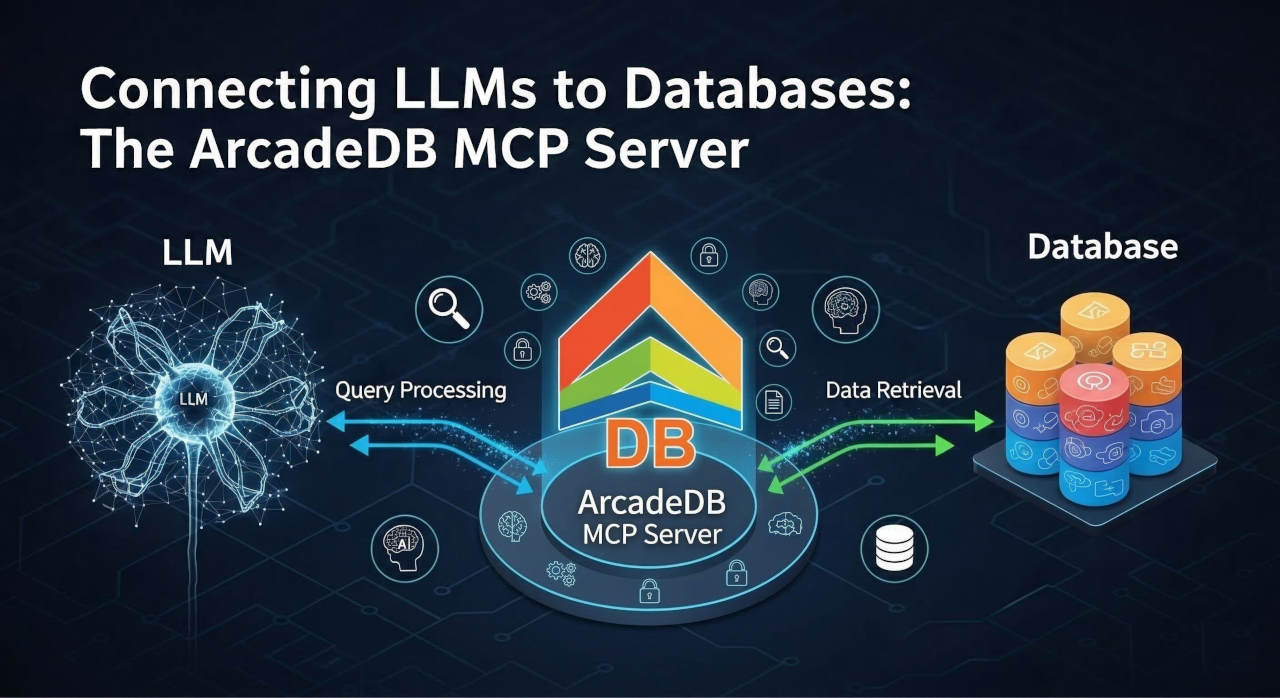
What if you could ask your database a question in plain English — and get an answer back?
With ArcadeDB v26.3.1, you can. The new built-in MCP server lets any MCP-compatible AI client — Claude Desktop, ChatGPT, Claude Code, or custom agents — connect directly to your ArcadeDB instance. No middleware. No custom glue code. Just point your AI at your database and start asking questions.
What Is MCP?
The Model Context Protocol (MCP) is an open standard created by Anthropic that defines how AI applications communicate with external tools and data sources. Think of it as a universal plug that connects LLMs to the outside world.
Before MCP, every AI integration was a custom project. Want Claude to query your database? Write a custom tool. Want ChatGPT to inspect your schema? Build an API wrapper. Each integration was a one-off effort, and none of them talked to each other.
MCP changes this. It defines a standard protocol — JSON-RPC 2.0 over HTTP — so that any MCP client can connect to any MCP server. ArcadeDB now ships with an MCP server built directly into the database engine. No external services, no plugins to install, no separate processes to manage.
Why a Built-In MCP Server?
Most database MCP integrations are external wrappers — a separate application that sits between the AI and the database, translating requests back and forth. This adds complexity, latency, and another component to deploy and secure.
ArcadeDB takes a different approach: the MCP server runs inside the database itself. This means:
- Zero deployment overhead — it’s already there when you start ArcadeDB
- Native security — MCP requests go through the same authentication and authorization as any other ArcadeDB API call
- Full multi-model access — your AI can query using SQL, Cypher, Gremlin, GraphQL, or even the MongoDB query language
- Real-time schema awareness — the LLM always sees the actual schema, not a stale snapshot
What Can Your AI Do?
The ArcadeDB MCP server exposes five tools that your AI client can use:
1. List Databases
The AI can discover which databases are available, filtered by the authenticated user’s permissions. This is the starting point for any conversation — the LLM knows what data it can access before it asks anything.
2. Explore the Schema
Before writing a query, the AI can introspect the full database schema: types (vertex, edge, document), their properties, data types, constraints, indexes, and inheritance hierarchies. This gives the LLM the context it needs to generate correct queries on the first attempt.
3. Query Your Data
Ask a question in natural language, and the AI translates it into a query — SQL, Cypher, Gremlin, or GraphQL — executes it against ArcadeDB, and returns the results. This tool is read-only by design: it uses semantic analysis to reject any write operations, so your AI assistant can never accidentally modify data through a query.
4. Execute Commands
When you explicitly need to modify data — insert records, update properties, create new types — the AI can use the command tool. Each operation type (insert, update, delete, schema changes) requires its own permission flag, giving you fine-grained control over what the AI is allowed to do.
5. Check Server Status
The AI can retrieve server information: version, available query languages, accessible databases, and cluster status. Useful for monitoring and diagnostics through natural conversation.
Granular Security by Design
Connecting an AI to your database raises an obvious question: how do you keep it safe?
ArcadeDB’s MCP server was designed with security as a first-class concern. The permission model is layered and granular:
| Permission | Default | Controls |
|---|---|---|
enabled |
false |
Master switch — MCP is off until you turn it on |
allowReads |
true |
SELECT, MATCH, and other read queries |
allowInsert |
false |
INSERT and CREATE operations |
allowUpdate |
false |
UPDATE operations |
allowDelete |
false |
DELETE operations |
allowSchemaChange |
false |
CREATE TYPE, ALTER TYPE, and other DDL |
allowAdmin |
false |
Server administration and cluster info |
allowedUsers |
["root"] |
Which users can access MCP (use "*" for all) |
The key design decision here is semantic analysis. ArcadeDB doesn’t check permissions by scanning query text for keywords — it parses the query through the engine’s AST and determines the actual operation types. A cleverly worded query can’t bypass permission checks.
By default, MCP is disabled with only read access permitted and restricted to the root user. You enable exactly what you need and nothing more.
Setting It Up
Step 1: Start ArcadeDB
If you’re running ArcadeDB via Docker:
docker run --rm -p 2480:2480 -p 7687:7687 \
    -e arcadedb.server.rootPassword=playwithdata \
    arcadedata/arcadedb:latest
Step 2: Create an API Token
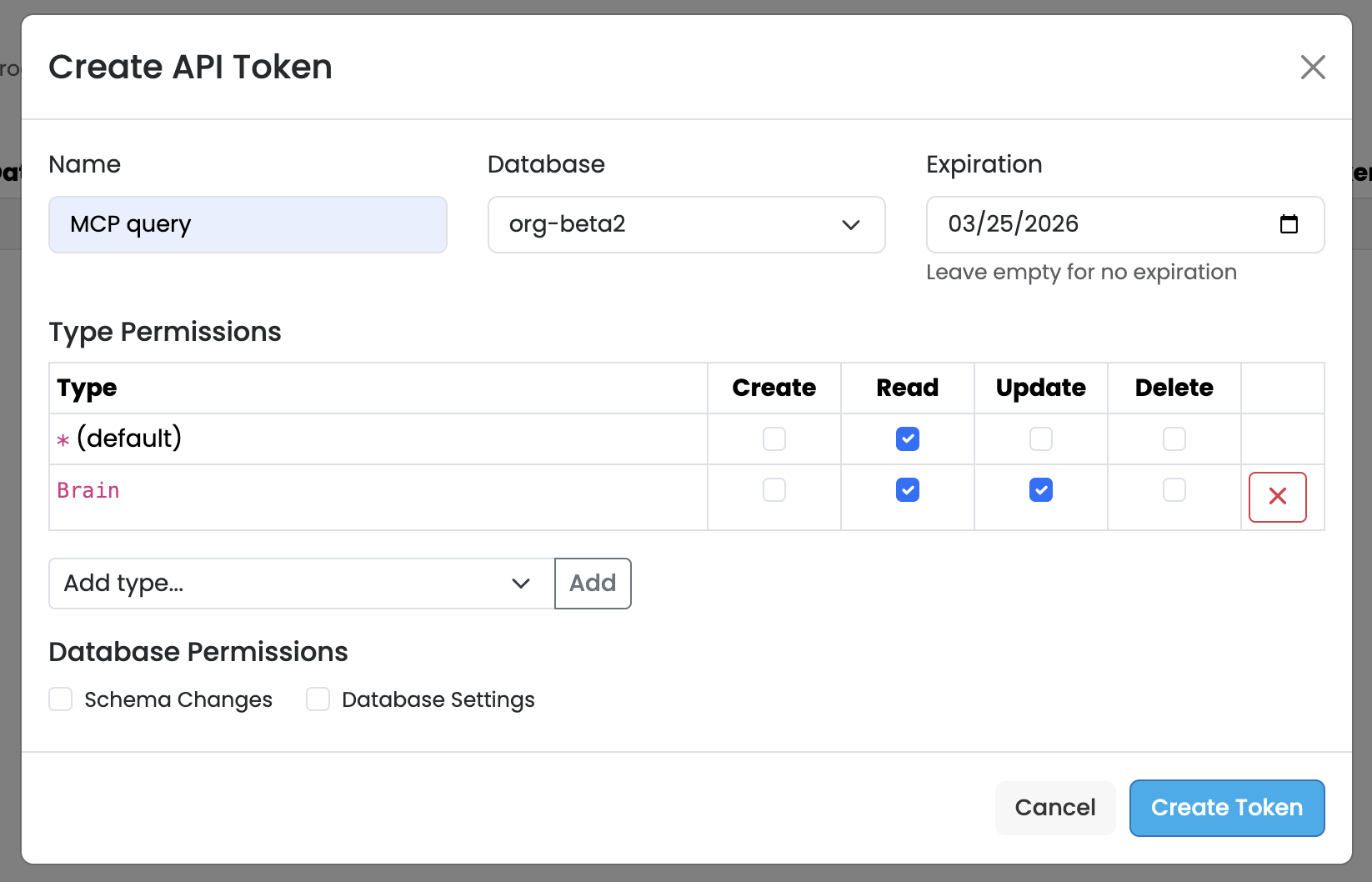
Before enabling MCP, you need an API token for authentication. In ArcadeDB Studio, navigate to the Security panel and click Add API Token. Give the token a descriptive name (e.g., “MCP query”), select the target database, set an optional expiration date, and configure the type-level permissions — typically Read access is all you need for an AI assistant.
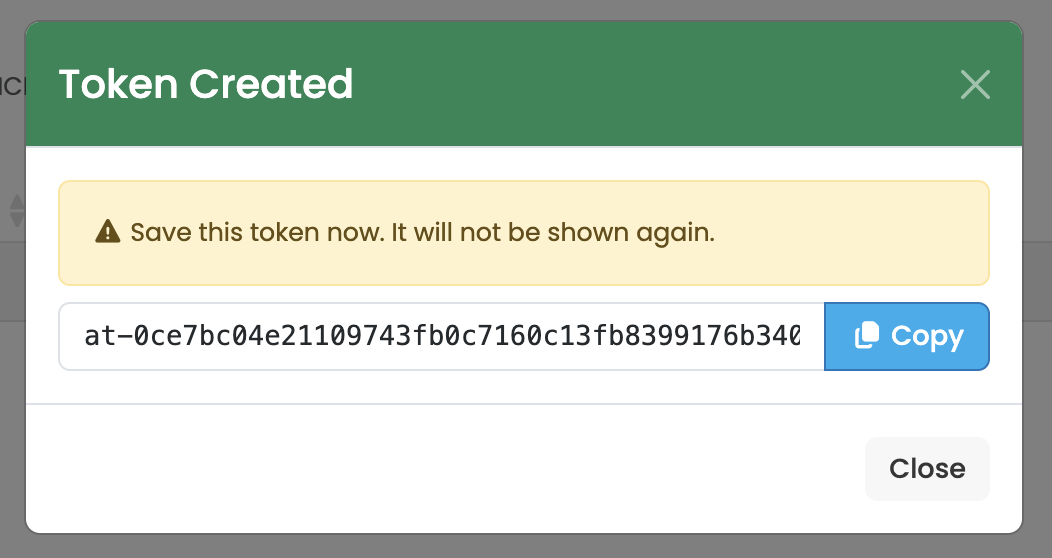
Click Create Token and you’ll see a confirmation dialog with your new token. Copy the token immediately — it will not be shown again. Store it somewhere safe, as you’ll need it to configure the MCP connection.
Step 3: Enable MCP from Studio
Open ArcadeDB Studio, navigate to the Server panel, and click the MCP tab. From here you can enable the MCP server, set the auth method to API Token, select the token you just created, configure permissions, and manage allowed users — all from a visual interface.
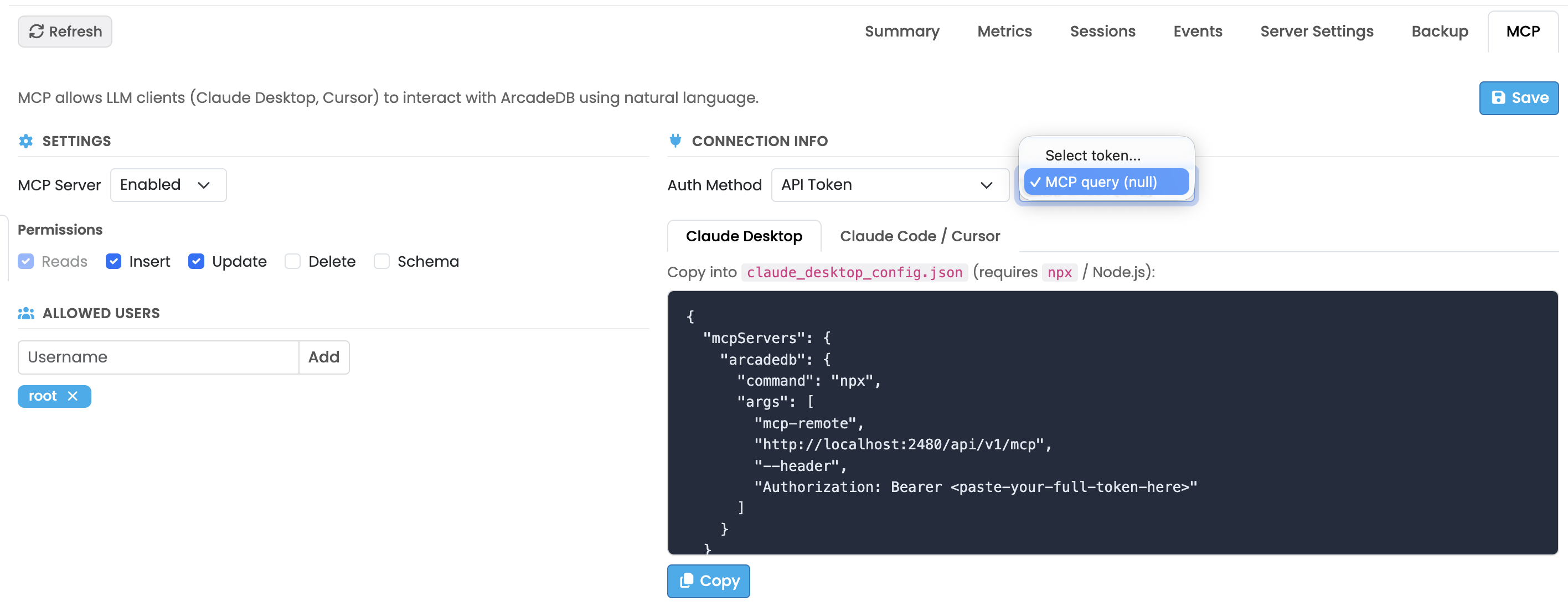
Studio also generates the ready-to-use configuration snippet for your AI client. Just select Claude Desktop or Claude Code / Cursor, copy the JSON, and paste it into your client’s config file. One click, no manual editing.
You can also enable MCP through the REST API:
curl -X POST -u root:playwithdata \
    -H "Content-Type: application/json" \
    -d '{
      "enabled": true,
      "allowReads": true,
      "allowedUsers": ["root"]
    }' \
    http://localhost:2480/api/v1/mcp/config
Or edit config/mcp-config.json directly in your ArcadeDB installation directory.
Step 4: Connect Your AI Client
Claude Desktop
Add this to your Claude Desktop MCP configuration (claude_desktop_config.json). ArcadeDB Studio generates this for you automatically — just copy and paste:
{
  "mcpServers": {
    "arcadedb": {
      "command": "npx",
      "args": [
        "mcp-remote",
        "http://localhost:2480/api/v1/mcp",
        "--header",
        "Authorization: Bearer <paste-your-full-token-here>"
      ]
    }
  }
}
This uses mcp-remote to bridge Claude Desktop to ArcadeDB’s HTTP-based MCP endpoint. Requires npx (Node.js) to be installed. Replace <paste-your-full-token-here> with the API token you copied in Step 2.
Claude Code / Cursor
In your Claude Code or Cursor MCP settings, add ArcadeDB as a Streamable HTTP server pointing to http://localhost:2480/api/v1/mcp with Bearer token authentication using the API token you created.
Once connected, you can start asking questions immediately:
- “What databases are available?”
- “Show me the schema of the orders database”
- “How many customers placed more than 5 orders last month?”
- “Which products are most frequently bought together?”
- “Create a summary report of revenue by region”
The AI will use the appropriate MCP tools, generate queries in the right language, execute them, and return human-readable answers.
The Best BI Tool Is No BI Tool
Here’s a bold claim: ArcadeDB’s MCP server paired with Claude Desktop is the most accessible business intelligence tool available today. No Tableau licenses. No Power BI dashboards to maintain. No Metabase instances to deploy. No learning curve.
Traditional BI tools require significant investment: someone has to design dashboards, write queries, create visualizations, maintain data pipelines, and update everything when the schema changes. Even “self-service” BI tools demand that business users learn a query builder or drag-and-drop interface.
With ArcadeDB + Claude Desktop, the workflow is radically different:
- Ask a question in plain English — “Show me monthly revenue trends for the last 12 months, broken down by product category”
- Claude reads the schema, understands your data model, and writes the right query
- Results come back instantly — as formatted tables, summaries, or even visual artifacts
- Want a chart? Just ask — “Now turn that into a bar chart” — and Claude generates a complete, interactive visualization right in the conversation
- Need to drill down? Keep asking — “Which category had the biggest drop in Q3? Show me the top 5 customers in that category”
This is the key insight: the conversation IS the dashboard. Every follow-up question refines the analysis. Every answer can be turned into a chart, a table, or a narrative summary. And because Claude understands context, it remembers what you were looking at five questions ago.
Zero-Code Dashboards and Reports
Claude Desktop can generate complete, polished artifacts — HTML dashboards, SVG charts, detailed data tables — entirely from natural language. Ask “Create a dashboard showing our key sales metrics” and Claude will:
- Query your ArcadeDB database for the relevant data
- Design a multi-panel dashboard layout
- Generate interactive charts with proper axes, legends, and color coding
- Include summary statistics and trend indicators
- Produce a self-contained HTML file you can share with your team
No code. No configuration. No design skills required. The output is production-quality — not a rough sketch, but a polished visualization that you’d be comfortable putting in front of stakeholders.
This is especially powerful with ArcadeDB’s graph data. Traditional BI tools struggle to visualize relationships and network structures. But ask Claude “Show me the network of suppliers connected to our top 10 products, with risk scores” and it can generate a graph visualization that would take hours to build in a conventional BI tool.
Why This Changes Everything
The economics are dramatic. A typical BI stack costs tens of thousands of dollars per year in licensing alone — before you count the engineering time to build and maintain dashboards. ArcadeDB is open source and free, and Claude Desktop costs a fraction of a single BI seat.
But the real advantage isn’t cost — it’s accessibility. Every person in your organization who can type a question can now do data analysis. The sales manager who has been waiting three weeks for the data team to build a report can now get the answer in 30 seconds. The CEO who wants to understand a trend doesn’t need to schedule a meeting — they just ask.
More Use Cases
Graph Exploration
ArcadeDB’s multi-model nature shines here. An analyst can ask: “Show me the shortest path between Company A and Company B through shared board members” — and the AI generates a Cypher traversal query, something that would take significant graph query expertise to write manually.
Schema Discovery and Documentation
New to a database? Ask the AI: “Describe the schema and explain the relationships between types.” It introspects the schema and gives you a plain-language explanation of your data model — including inheritance hierarchies, indexes, and constraints.
Automated Reporting
Connect your AI agent to ArcadeDB via MCP and schedule natural language report generation. “Generate a weekly fraud detection summary” becomes a query that runs against your graph, analyzes patterns, and produces a readable report.
Multi-Model, Multi-Language
One of ArcadeDB’s unique strengths is its multi-model architecture. Through a single MCP connection, your AI can:
- Write SQL for relational queries and aggregations
- Use Cypher for graph traversals and pattern matching
- Execute Gremlin for complex graph algorithms
- Query with GraphQL for structured data retrieval
- Use MongoDB syntax for document-oriented operations
The AI picks the right language for the question. A tabular aggregation? SQL. A relationship traversal? Cypher. The LLM has all five languages available through the same MCP endpoint.
How It Compares
Several graph databases have recently added MCP support, typically as external packages or separate applications. ArcadeDB’s approach is distinct:
- Built-in, not bolted-on — no external server, no npm package, no Python wrapper
- Multi-model access — not limited to a single query language
- Semantic permission analysis — permissions checked at the AST level, not by keyword matching
- Runtime configuration — enable, disable, and reconfigure MCP without restarting the server
- Unified security — same auth system as the rest of ArcadeDB, not a separate credential store
Getting Started
ArcadeDB’s MCP server is coming with v26.3.1. To try it today with the latest snapshot:
- Pull the latest ArcadeDB Docker image or build from source
- Enable MCP via the config API or JSON file
- Connect your preferred AI client
- Start asking questions
Check out the ArcadeDB documentation for the full MCP configuration reference.
Have questions? Join our Discord community or open an issue on GitHub. We’d love to hear how you’re using AI with your database.